Can VectorCraft replace Illustrator? A practical comparison
For a small SVG edit, maybe. For an Illustrator production handoff, test the actual file and output requirements first. Here is where the distinction matters.
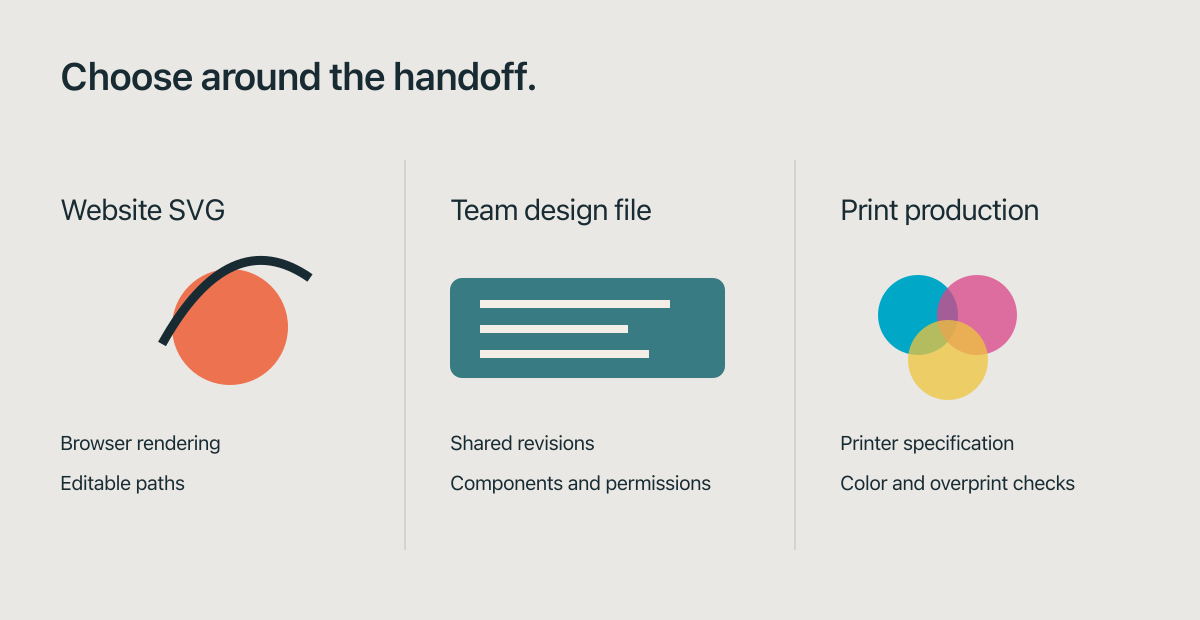
For changing a simple SVG logo's color, VectorCraft Online can be enough. For replacing an Illustrator production workflow, we would not decide from the toolbar resemblance or a successful SVG preview.
The file you must deliver is the deciding factor. A website SVG, a client's editable .ai file and a print-ready PDF are different promises.
We tested the first kind of task: a small browser SVG edit. We did not test a production Illustrator project, a printer's separations or an Illustrator installation for this article. Adobe's documentation supplies the Illustrator side of the comparison.
What we could actually do in VectorCraft
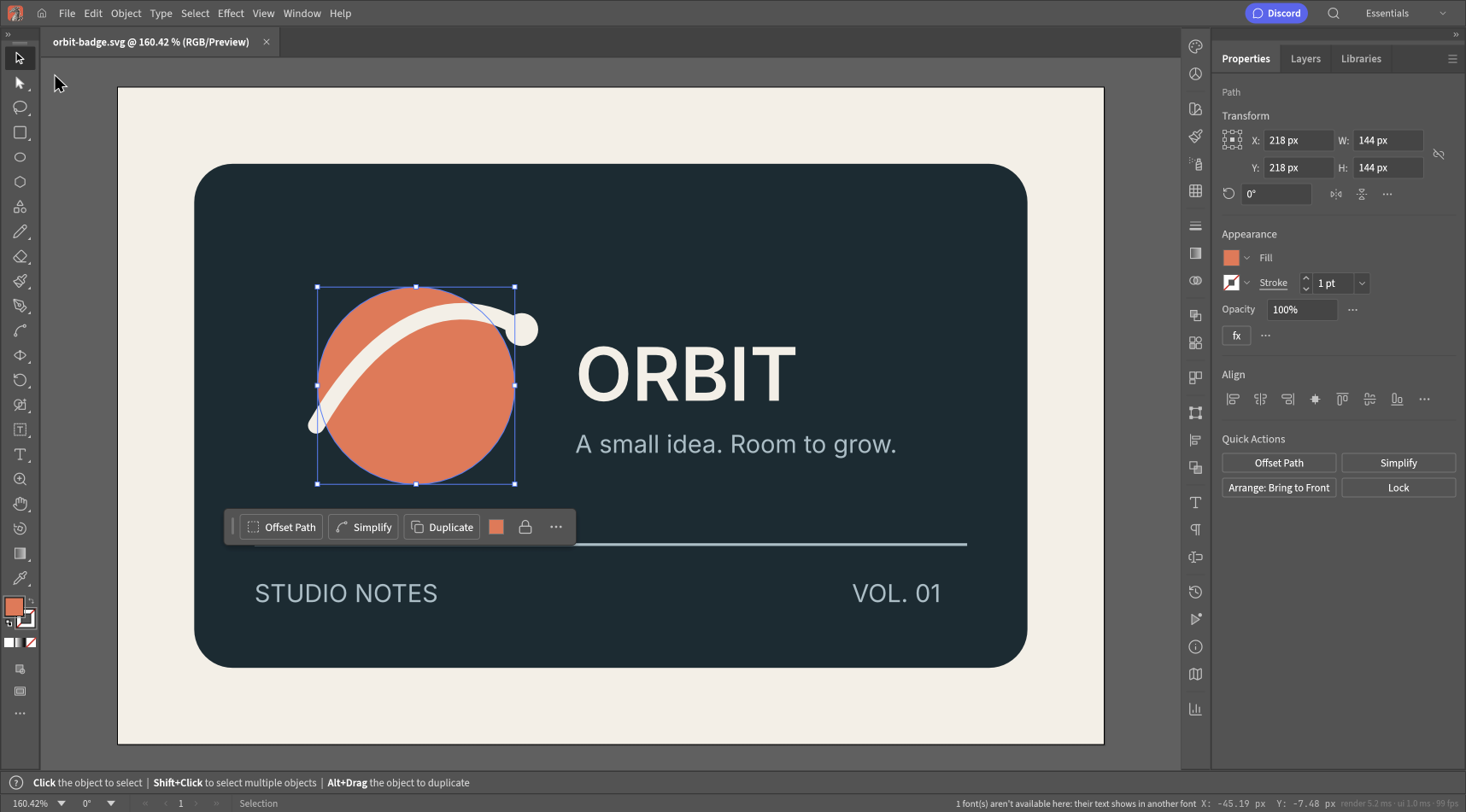
Our Orbit badge has a solid background, a circle, a curved stroke and live text. In the hosted 0.11.0 browser build, we selected the circle, changed its fill to #397B82 and exported another SVG.
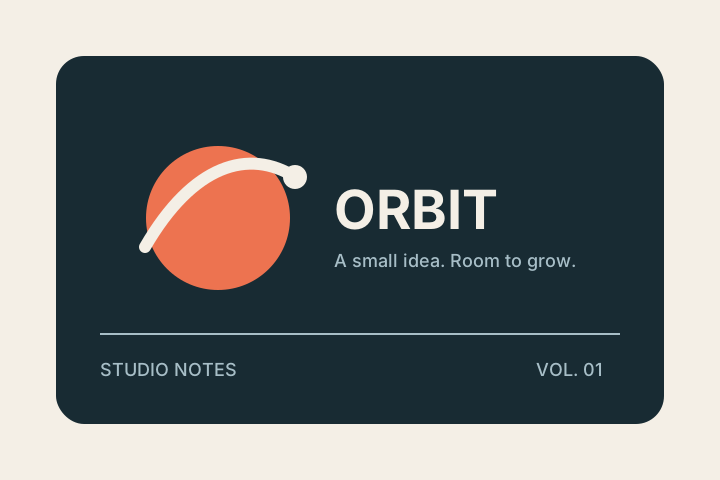
The download kept the 720 × 480 viewBox, vector paths and text. It did not become a flattened raster image. You can inspect that export yourself.
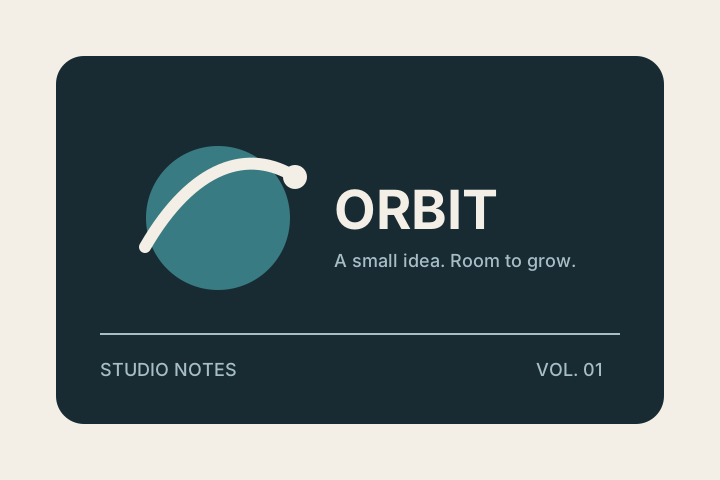
This is the job we completed: one object in a small SVG, edited in desktop Chromium on macOS on October 15, 2026.
That evidence supports using the hosted editor for a simple correction. It says nothing about a complicated brand file's effects, linked assets or later revisions in Illustrator.
For a fresh graphic made from ordinary shapes, our first SVG tutorial provides another small exercise. These are useful starting points because you can inspect the result without relying on a feature claim.
“It opens .ai” needs a second question
Ask: what survives when someone edits the file again in Illustrator?
VectorCraft's hosted FAQ describes support for PDF-compatible .ai files and warns that Illustrator-specific editing data is not preserved. Keep the original. A visible page can survive an exchange while some of its editable construction does not.
Adobe's SVG documentation discusses export choices and Illustrator editing data too. An exchange format and a native editing workflow are not interchangeable simply because both can display vector artwork.
Do not rename an SVG to .ai or treat an exported PDF as proof of a full Illustrator round trip. If the client needs an editable Illustrator original, open the exchanged file in Illustrator and check the parts the client expects to revise.
| Your deliverable | What to check | Our recommendation |
|---|---|---|
| A web SVG with a few solid shapes | Geometry, fills, viewBox and rendering at the actual display size. | Try VectorCraft with a copy. Our small SVG test covered this kind of edit. |
| An editable Illustrator project | Text, layers, effects, linked assets and revisions in Illustrator. | Keep Illustrator in the handoff until the actual round trip passes. |
| A print-ready PDF | The printer's specification, fonts, bleed, inks and overprint behavior. | Use the production workflow the printer accepts; our browser SVG test does not qualify it. |
| A quick personal illustration | The drawing tools you use and whether the working file reopens correctly. | Test a short project before moving your archive. |
Printing introduces requirements the screen does not show
An RGB graphic can look good in a browser and still be unsuitable for the printing process you ordered. Bleed, spot colors and overprint are examples of requirements that deserve their own checks.
Illustrator provides workflows for print color separations, described in Adobe's separation guide. We did not test equivalent production output in the hosted VectorCraft build, so this article does not claim that it is absent or that it is equivalent.
A sensible replacement test starts with a brief from the printer and a representative document. Ask the printer to assess the output. Drawing the same shape on the screen is not that test.
Text is the first thing we would stress-test
Our badge showed a missing-font warning in VectorCraft. A plausible-looking fallback is enough to make a quick illustration readable, but it can change a carefully specified brand lockup.
Start your own trial with the fonts, paragraph styles and language your work actually uses. Check line breaks and character coverage. If an export outlines text, inspect the appearance and accept that future wording changes will require another editable original.
Keep a .vectorcraft working copy if you continue in VectorCraft, alongside the original .ai and the exported deliverable. The extra files are less expensive than discovering that a revision requires rebuilding the artwork.
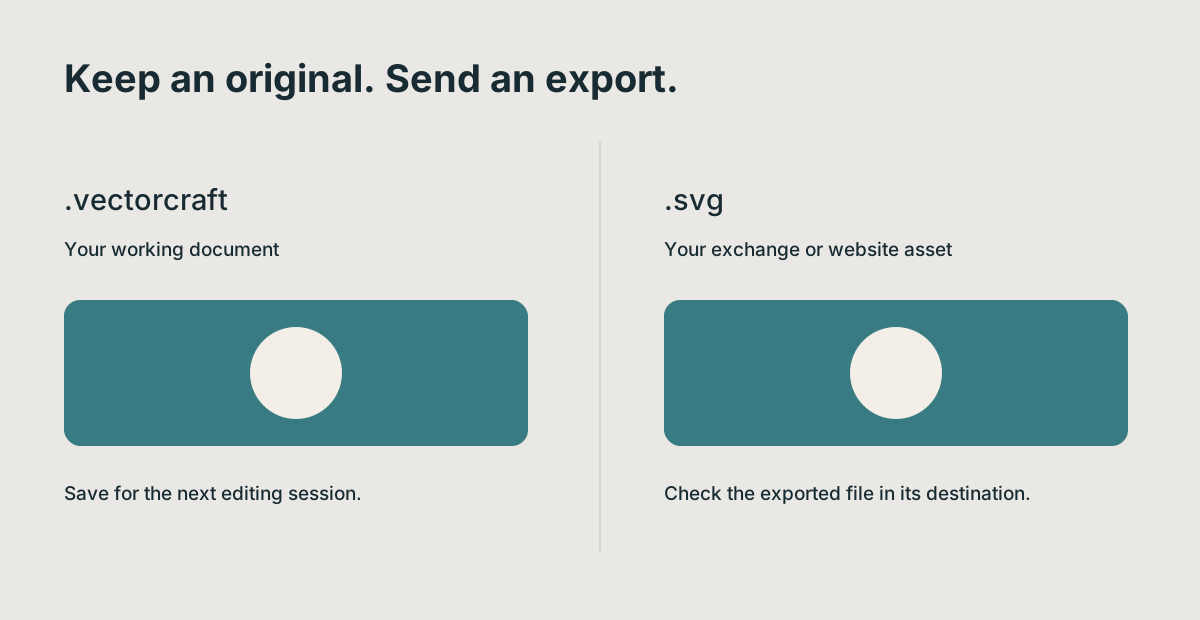
A replacement workflow must preserve the file needed for the next revision, not just produce today's preview.
Run a replacement trial you can judge
Choose one finished job you understand well. Keep its original and list the changes a client commonly asks for: a new headline, another color, a resized artboard or a revised curve.
Make those changes in the candidate editor. Export the required format. Then inspect the output in the receiving tool or production process. Record any changed typography, missing effects or editability losses.
We would stop the trial if a required deliverable cannot be checked. That does not make the candidate useless; it tells you where it fits. You might use a browser editor for quick SVG corrections and keep Illustrator for a particular client's production files.
Our answer for the hosted build
VectorCraft Online is a reasonable tool to try for small SVG work, with a local export you can check. It is still an alpha-stage editor, and our evidence here is a small file on one desktop browser.
Replacing Illustrator across a production workflow needs a successful trial of that workflow. We have not established one in this article.
If the immediate job is simply to change a fill, follow our recoloring walkthrough. If you want a desktop alternative built around SVG, read our VectorCraft and Inkscape comparison.