How to change SVG colors without Illustrator
Recolor one part of an SVG without repainting the whole file. A practical example, exact hex values, and the cases that need a different approach.
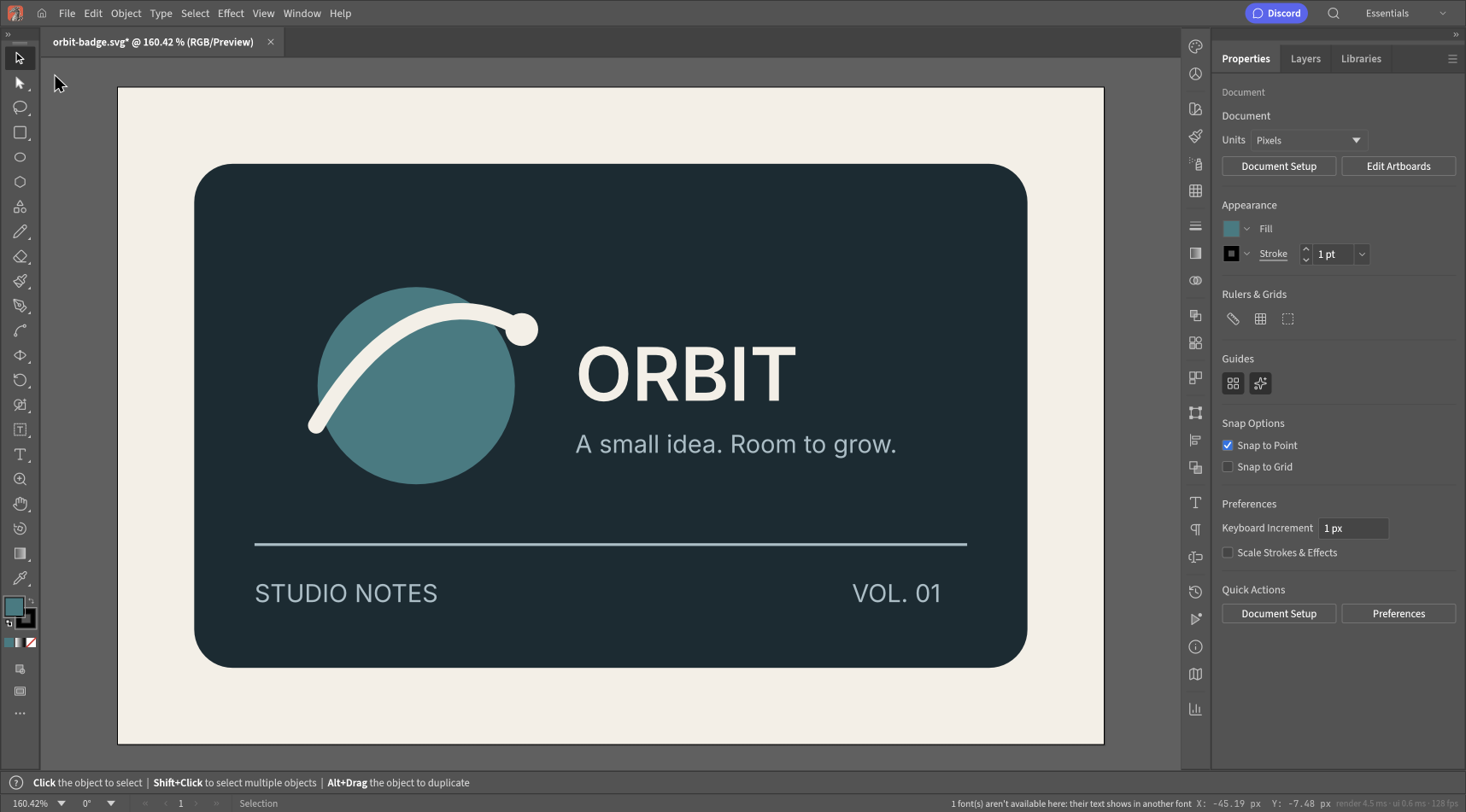
You can change a solid SVG fill without buying or installing Illustrator. The harder part is making sure you changed the right paint on the right object.
For this article, we took a small Orbit badge and changed its orange circle to teal. The background, lettering and curved stroke stayed as they were. We used VectorCraft Online in a desktop browser and checked the exported SVG, including its color value.
Download the original, open the editor, or inspect the recolored result.


The quickest route for a normal solid fill
- Open the SVG with File > Open, or drop it onto the editor.
- Use Selection to click the object whose color you want to change.
- Open Properties > Appearance > Fill.
- Switch to the color controls, enter your hexadecimal value, and confirm it.
- Export an SVG, then check the downloaded file in a browser.
Our source color was #ED7350. We changed it to #397B82. Entering the code is more reliable than trying to land on the same shade with the color spectrum.
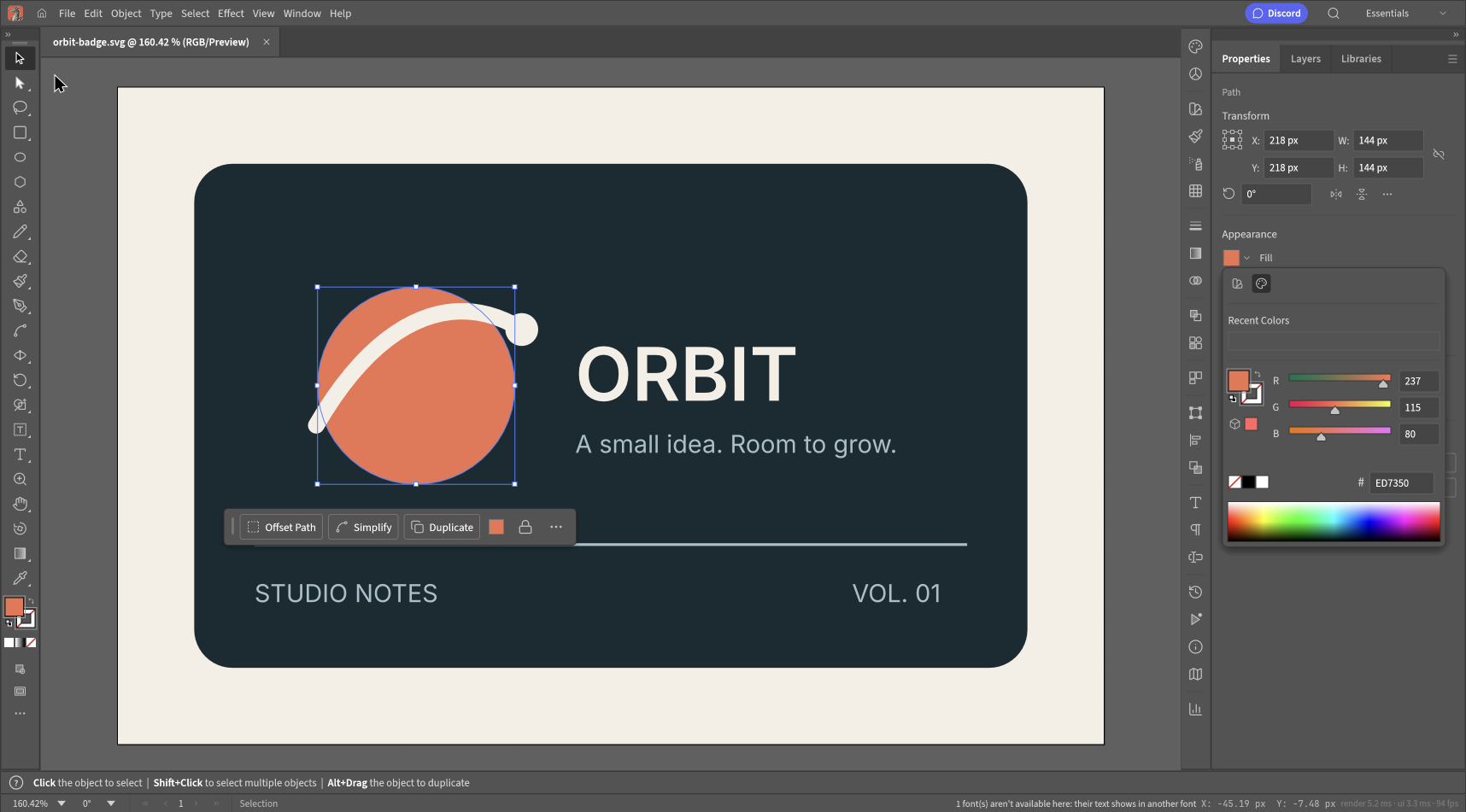
The hexadecimal field lets you use a supplied color exactly. The panel is showing Fill for the selected circle.
In the download, the new color appears as #397b82. Lowercase hexadecimal letters do not change the color. The SVG still contains vector paths and text, with the original 720 × 480 viewBox.
Fill and stroke are different paints
Look closely at the badge. Its orange circle uses a fill. The cream orbit is a curved stroke with no fill. Both are vector objects, but their visible colors come from different settings.
If you select the orbit and change its Fill, you have not changed the cream line's Stroke. Select Stroke instead. For an outlined icon, this is often the entire explanation for a color edit that seemed to do nothing.
SVG's fill and stroke properties can also be supplied through style rules, rather than written directly on each shape. MDN's fill and stroke guide describes these properties. The practical lesson is to inspect the object, not to assume every visible color comes from a fill.
Check what the SVG actually contains
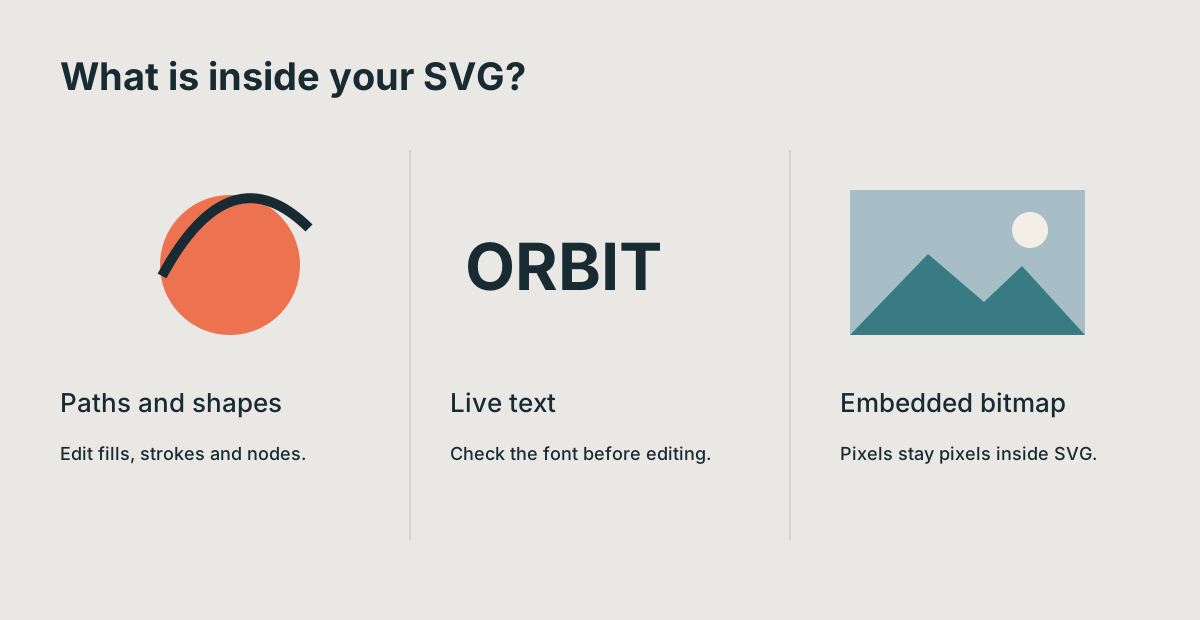
An SVG filename does not tell you whether the artwork consists of editable shapes, text or an embedded image.
If the artwork selects as one large image, it may contain a bitmap. Its pixels will not become separate vector fills because the container is SVG. Ask for the original vector file if you need to recolor individual elements cleanly.
If the object uses a gradient, changing one solid swatch may discard the intended variation. Work with its gradient stops and decide which stop should change. We used a solid fill in this walkthrough; we did not test a gradient recolor here.
If the selected object is live text, inspect the font before changing anything else. Our badge triggered a missing-font warning in the editor. A title that shifts after export is a typography problem, even if its new color is correct.
Why a logo can be harder than a simple icon
A logo may have nested groups, a clipping mask and several objects that share the same visible color. Clicking one orange region will not necessarily select all orange artwork.
Work on a duplicate, change a small part, and inspect the result. Keep an eye on negative space: a white shape may be part of the logo rather than a disposable background.
There is also a difference between choosing a new palette and following a brand specification. A teal that looks good on your monitor may not meet a client's required color values. For print work, ask for the printer's color requirements; a hex code alone is not a complete print specification.
You can edit SVG source, but avoid a blind replacement
For a small file that you understand, changing a fill attribute in a text editor is another option:
<circle cx="218" cy="218" r="72" fill="#397b82" />
This snippet is the circle in our source example with the new color. A larger exported SVG may use a CSS class instead, such as .cls-3, with the fill defined in a style block.
Searching for an old hex code and replacing every occurrence can change unrelated objects or gradient stops. It can also miss colors expressed in another notation. A visual editor is often easier when your instruction is “change this circle” rather than “replace every use of this value.”
Keep a backup whichever method you choose.
The final check is in the destination
We downloaded the SVG through File > Export > Export As SVG. The file retained the new color and vector geometry. That is a stronger check than looking at the editor's preview alone.
For a website asset, inspect it on both the intended light and dark backgrounds. For a small icon, view it at its actual display size; a stroke that looks elegant at 160% zoom can disappear at 24 pixels.
If the color reverts only when you place the SVG on a website, inspect the site's CSS too. The editor cannot prevent another stylesheet from changing an inline SVG's paint.
The recolor was checked in VectorCraft 0.11.0 on desktop Chromium for macOS on October 15, 2026. For the complete opening and export sequence, follow our SVG editing tutorial. To compare browser options for the same kind of job, read our free online editor comparison.