How to edit an SVG file online with VectorCraft
A real SVG edit, from opening the file to checking the download. Follow along with our Orbit badge and see the font problem we caught.
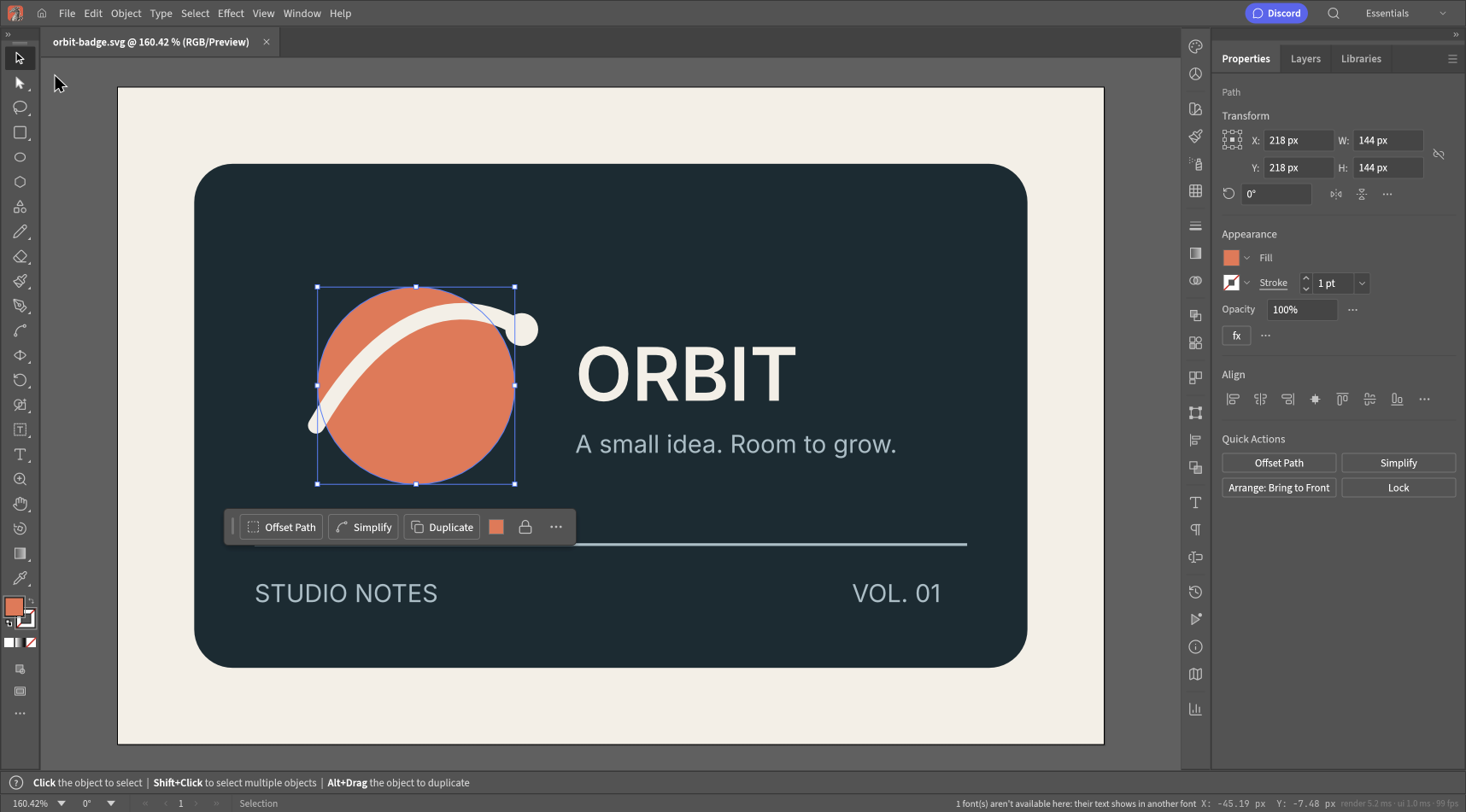
Someone sends you an SVG. The artwork is fine, but the orange needs to become teal. You want to change one object, keep the rest intact, and send a working file back.
That is the job we used for this walkthrough. We opened a small badge in VectorCraft Online, changed its circle from #ED7350 to #397B82, and downloaded another SVG. The result still contains vector paths and text. It also exposed a font warning that would have been easy to miss.
Open the editor and download the original badge to follow the same steps.
1. Open the SVG as a document
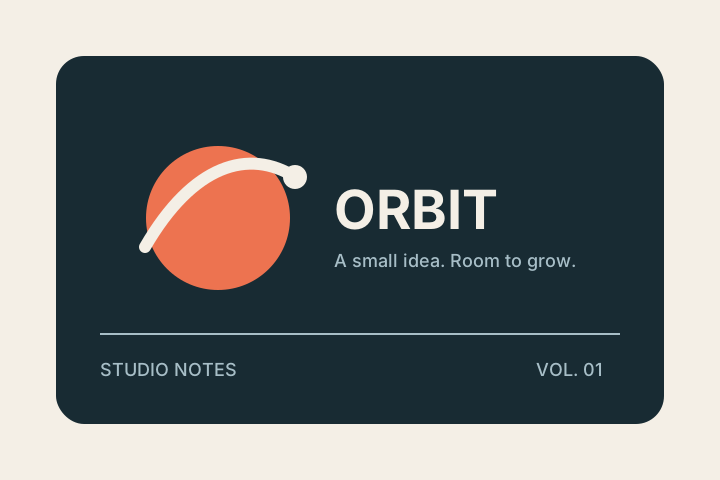
Use File > Open, then select your SVG. You can also drop the file onto the editor; that is how we loaded the example. If the editor opens with the Neon Drive demonstration, your SVG should appear in a separate document tab.
Check the artwork before changing anything. Are the background and curve present? Does the title fit? Is the artboard the right shape?
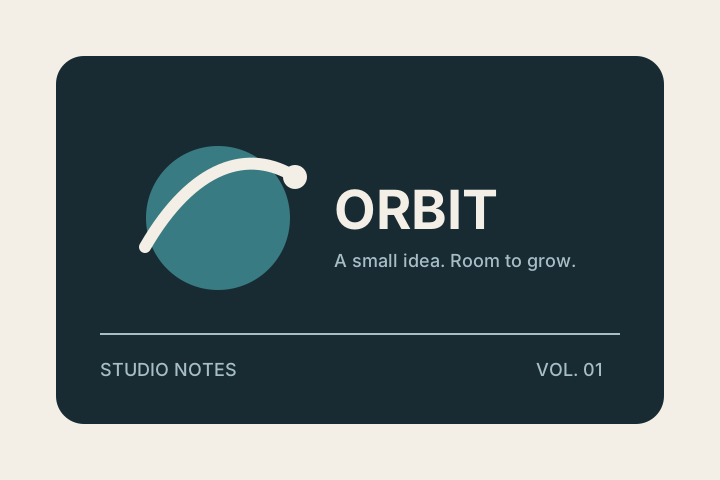
Our source has a 720 × 480 viewBox. It contains ordinary shapes, one curved stroke and live text. We deliberately kept masks, filters and linked images out of this first example. Those make useful compatibility tests later, once the basic edit works.
2. Select the object you intend to change
Choose the Selection tool, the black arrow at the top of the left toolbar. Click inside the orange circle, away from the cream curve.
The selection outline should surround the circle alone. In our example, the Properties panel identifies it as a path after import. That is fine: importing a circle as a vector path does not make it a bitmap.
If a whole group selects, inspect Layers or try Direct Selection. Avoid ungrouping the entire document just to reach one object. A mask or a carefully arranged group may have a reason to exist.
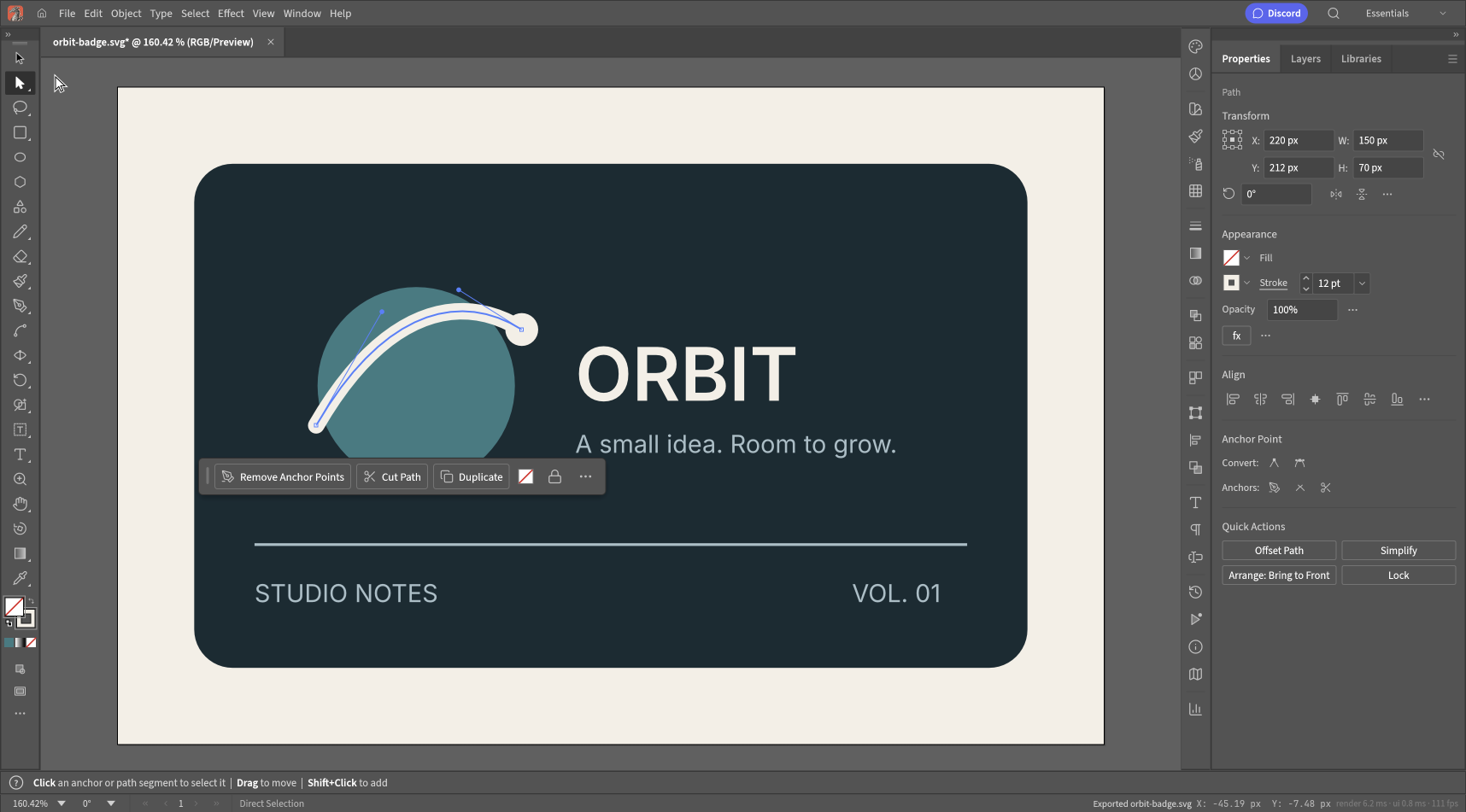
Direct Selection reveals the curve's anchors. Use it for path edits; ordinary Selection is enough for changing the circle's fill.
3. Change the fill, leaving the stroke alone
In Properties > Appearance, open the Fill swatch. The popup has separate swatch and color controls. Switch to the color controls and enter 397B82 in the hexadecimal field, then confirm the value.
Why bother entering a hex code? Dragging around a color spectrum is fine for exploring, but it is a poor way to match a supplied brand color.
Our circle has a solid fill. The cream orbit has a stroke and no fill. Selecting that curve and changing Fill would be the wrong operation. If an edit seems to do nothing, check both the selected object and which paint you changed.
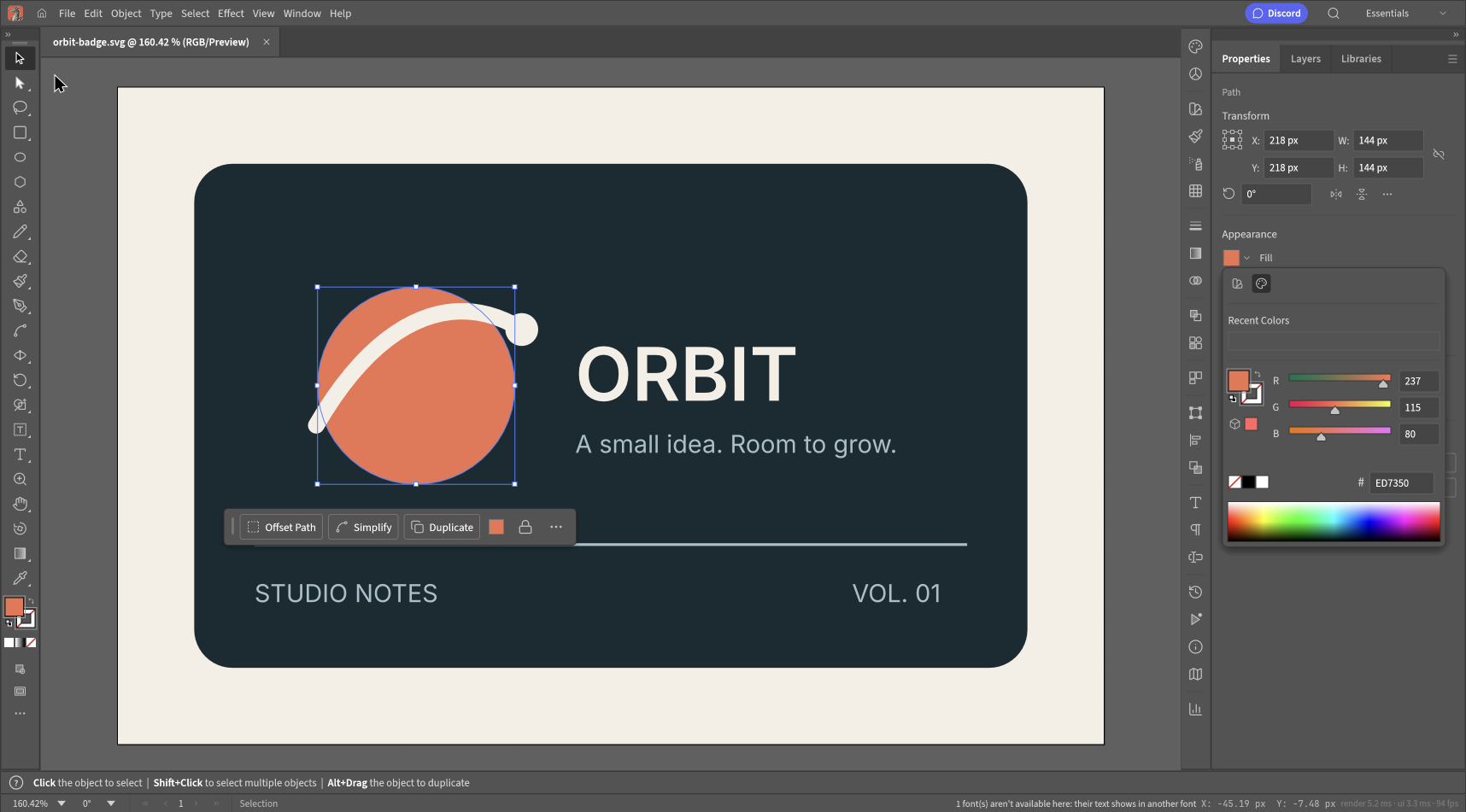
The original orange is ED7350. We changed only the circle's fill, using the hexadecimal field.
The title, background, curved stroke and smaller labels stayed separate from the circle. Download the edited SVG if you want to inspect the result rather than take our word for it.
4. Pause when the file contains text
At the bottom of the editor, our imported badge showed a warning that one font was unavailable. The title still looked plausible. That is precisely why the warning matters.
An SVG can store text as characters with a font reference, or store letter shapes as paths. Live text lets you change the wording, but the receiving environment needs a suitable font. Outlined letters keep their geometry, but you cannot edit them as a sentence. MDN explains how SVG text and font properties work.
Before delivering a text-heavy file, inspect its title, line breaks and spacing in the destination. If the original uses a font you do not have, obtain a properly licensed copy or ask for an outlined version. Replacing it with a similar-looking font is a design decision, not a harmless technical fix.
5. Export an SVG and inspect that file
Choose File > Export > Export As SVG. The SVG Options dialog includes styling, fonts and artboard settings. For this example, we kept the displayed defaults, including Use Artboards, and confirmed the export.
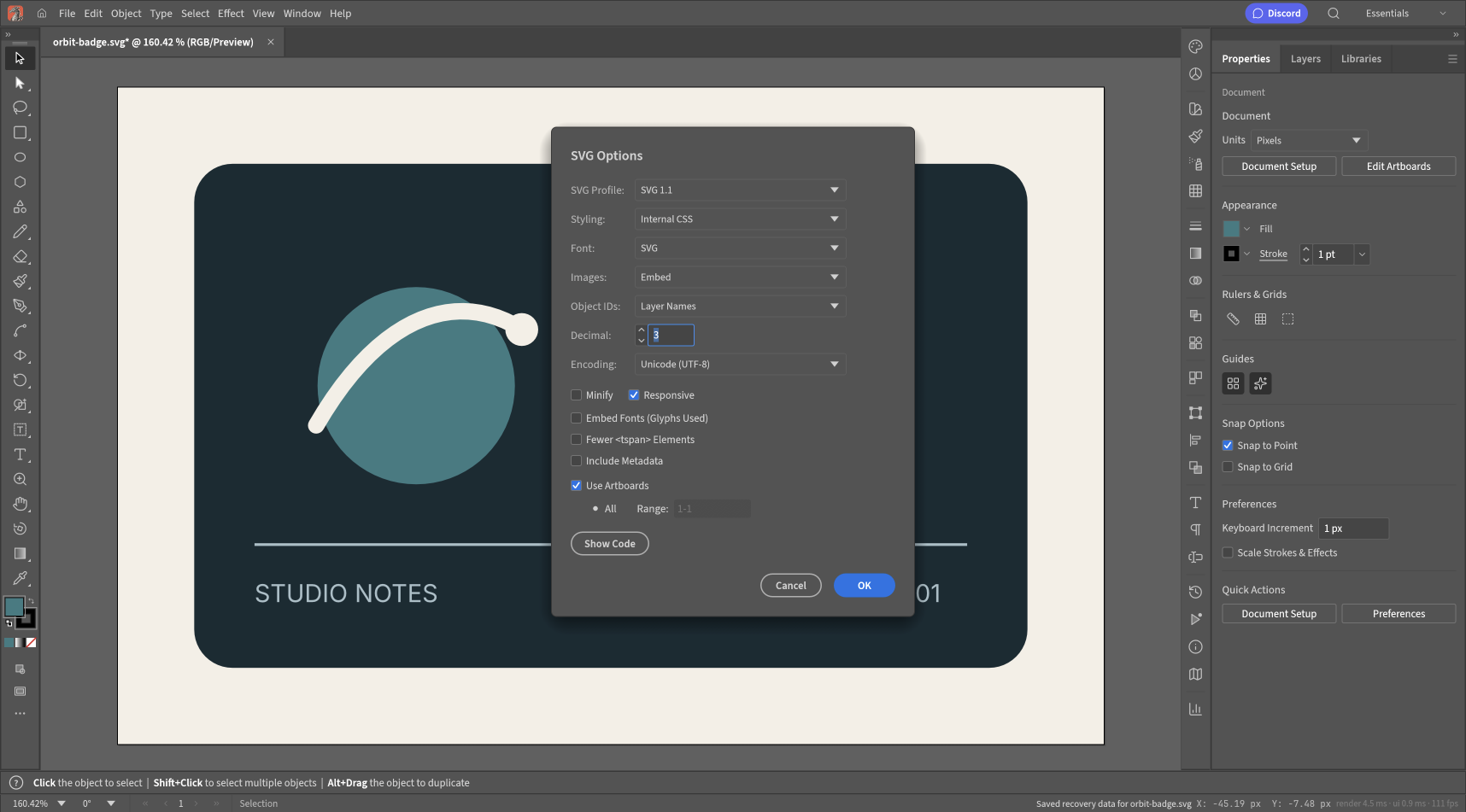
The options used for our download. Export settings deserve a check, especially when text or multiple artboards are involved.
Open the download in a browser. Compare the title, curve, background and spacing with the original. If the SVG is going on a website, check it at the size the website will actually use.
We also inspected the exported XML. It retained viewBox="0 0 720 480", contained the new #397b82 fill, and used paths and text without an embedded raster image. That supports a narrow conclusion: this edit produced another vector SVG. It does not prove that every feature in a more complex file would survive.
When an SVG will not behave like this one
A file ending in .svg can contain an embedded PNG, external styles, linked fonts or unsupported effects. If you cannot select meaningful objects, inspect what the file contains before trying random tools.
For an embedded bitmap, ask for the vector original. For a missing font, resolve the font. For an effect that changes after import, keep the original and test a simpler copy. Changing the filename or exporting again will not restore information that was never there.
For a more focused walkthrough, read how to change SVG colors. If you would rather start from a blank artboard, use our first SVG tutorial.