Free online vector editors compared for SVG editing
VectorCraft, SVG-Edit, Penpot and Figma suit different jobs. Two browser checks, a shared sample file, and a clear distinction between free editing and a free plan.
If you only need to change an SVG and download it, start with an editor that takes you straight to the file. If you need a shared design workspace, an account and project system may be useful rather than an inconvenience.
We shortlisted four options: VectorCraft Online, SVG-Edit, Penpot and Figma. They are not four interchangeable “free Illustrator replacements.” Two are useful candidates for a small SVG edit; the others make more sense when the asset belongs to a larger team design project.
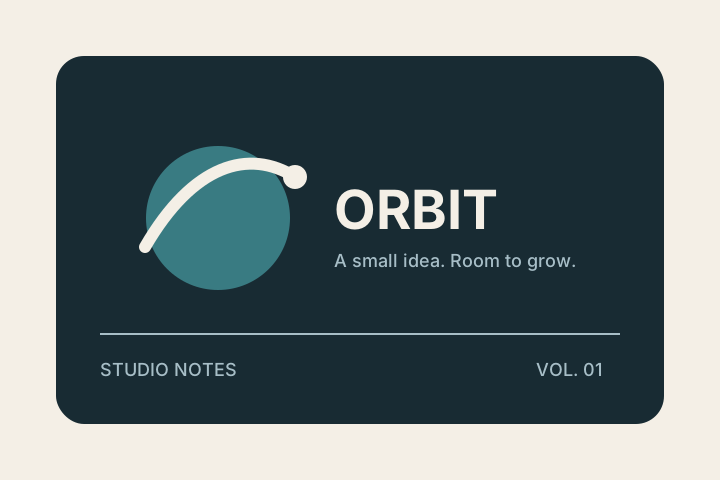
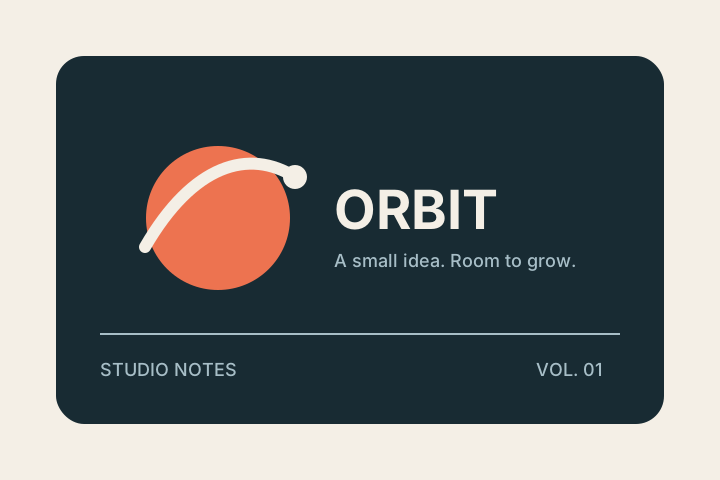
We operate VectorCraft Online. To make the comparison inspectable, we used the same original badge for our two browser checks and have linked the files below.
What we checked, and what we researched
On October 15, 2026, in desktop Chromium on macOS:
- In VectorCraft 0.11.0, we dropped in the SVG, changed the circle's fill and downloaded an SVG. We inspected its viewBox and vector objects.
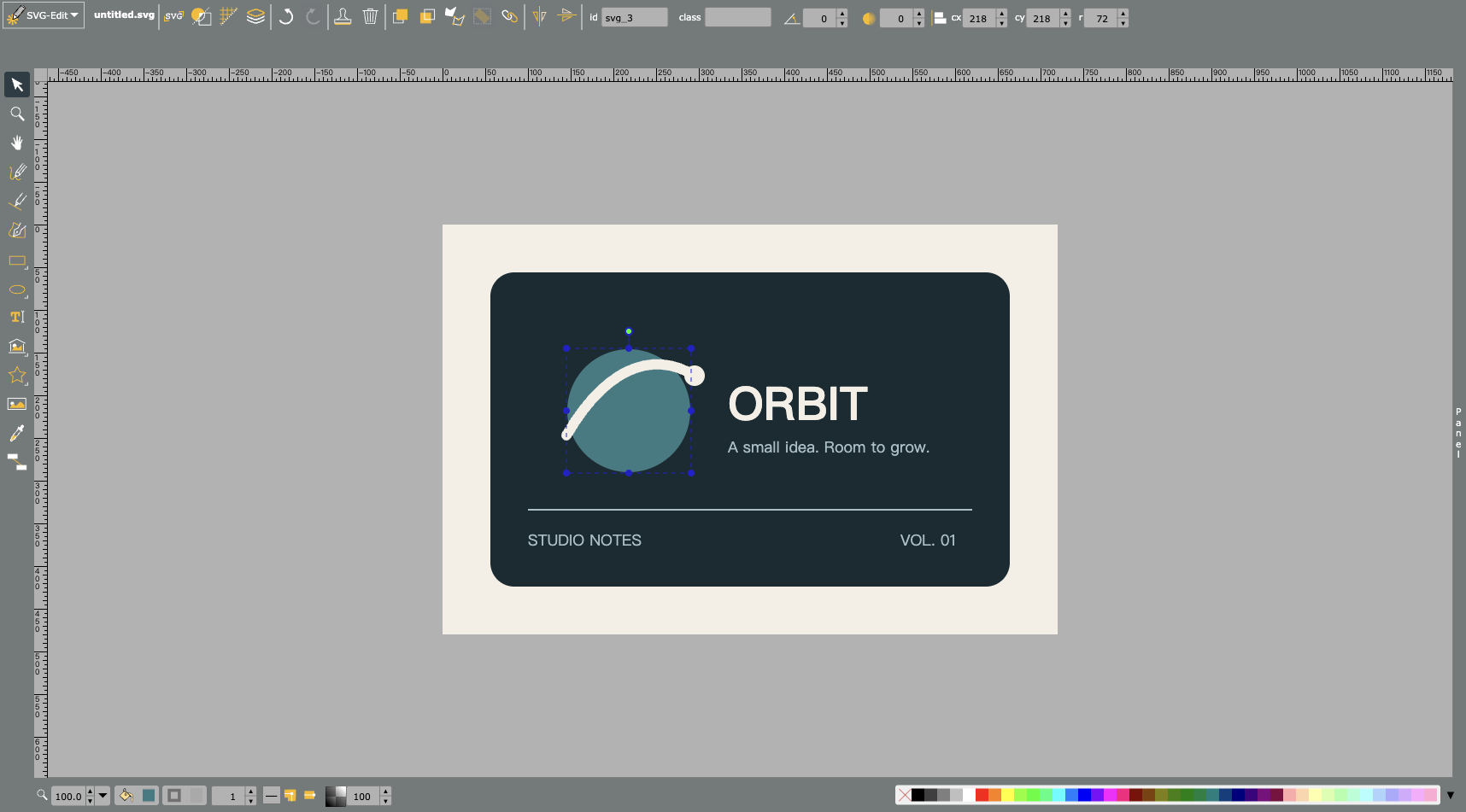
- In the SVG-Edit live development demo, we loaded the same SVG through its Source Editor, selected the circle, changed its fill and inspected the resulting SVG source. We did not complete its native file-save dialog, so this is a narrower check than the VectorCraft export test.
- For Penpot and Figma, we consulted official product and plan documentation. We did not sign into their editors or run the sample through them.
The SVG-Edit demo follows a development branch. These observations describe the demo on the check date, not a benchmark of a pinned stable release. We did not time any of the editors or assign numerical scores.
| Editor | Useful starting job | Meaning of free | Evidence here |
|---|---|---|---|
| VectorCraft Online | A local SVG correction in a browser. | No account, subscription or paid export tier on this hosted editor. | Import, solid-fill edit and SVG download observed. |
| SVG-Edit | A small SVG drawing or source-aware edit. | An open-source editor; the public demo opened without an account. | Source import, solid-fill edit and source inspection observed. |
| Penpot | Assets inside a shared product-design project. | Its site offers free signup and self-hosting; check the current plan. | Official documentation only. |
| Figma | An SVG asset used in an existing interface-design workflow. | A free Starter plan with plan-specific limits. | Official documentation only. |
VectorCraft Online: try the actual export first
VectorCraft's hosted build gave us a familiar object-and-properties workflow. The circle selected separately, its fill accepted #397B82, and the exported file retained vector paths and text. Download that result.
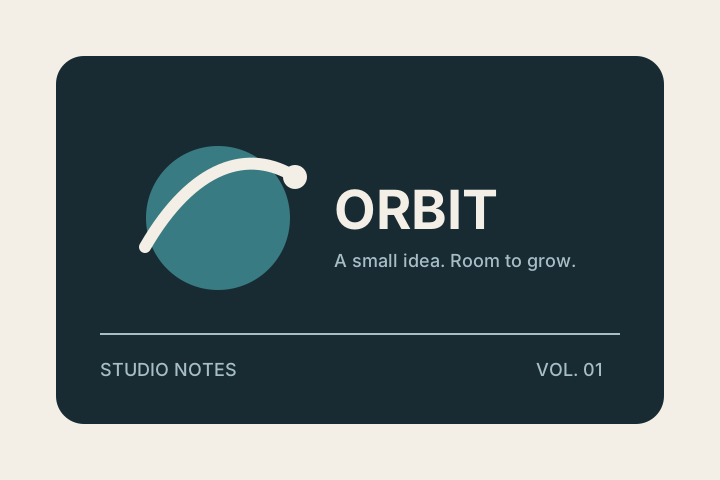
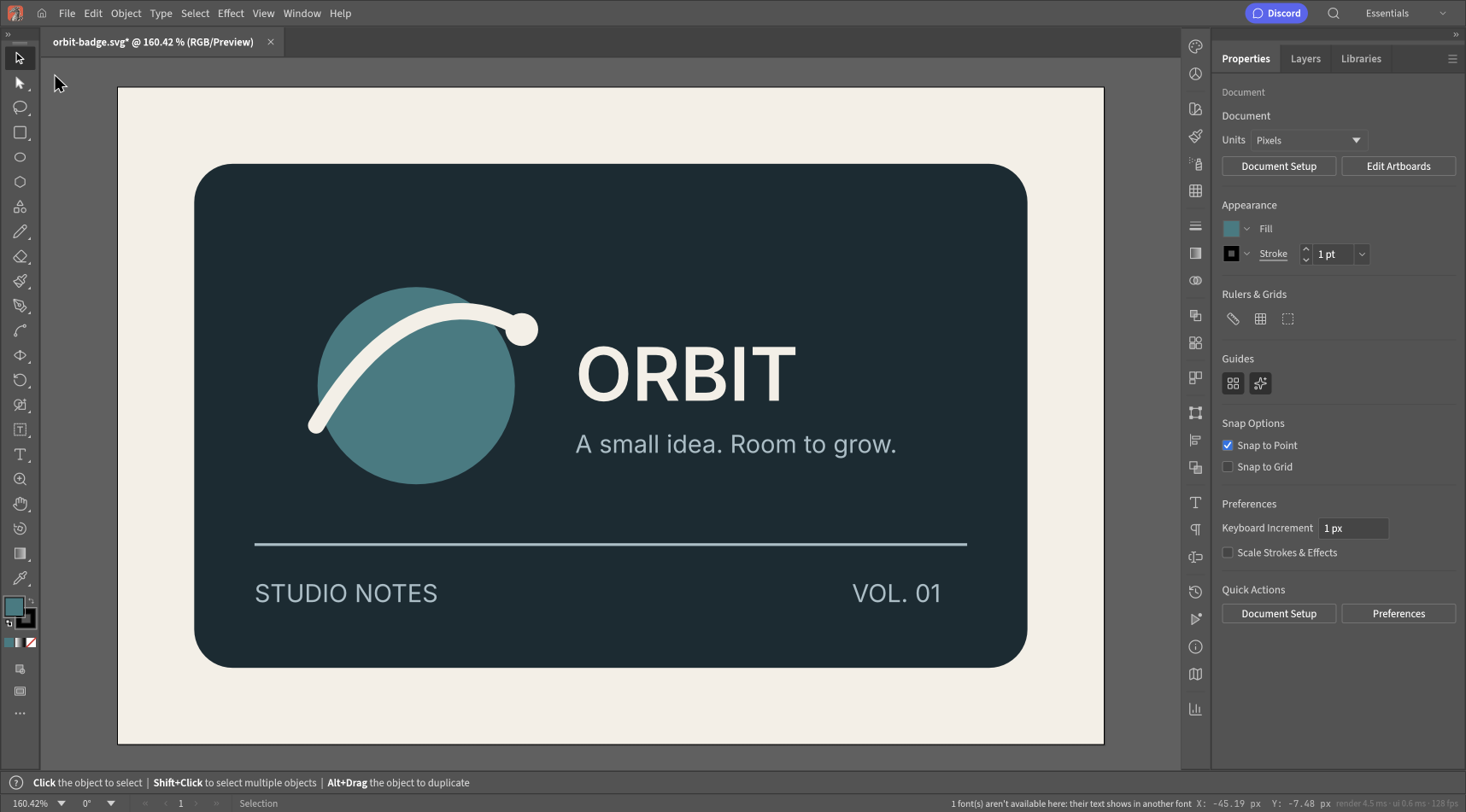
VectorCraft's result with the shared sample. The export retained the original viewBox and the new fill.
There was a font warning. That keeps our recommendation modest: use a copy, inspect text and check the delivered SVG. The browser build is still alpha, so a successful simple badge is not a promise about complex client artwork.
Open the editor or follow the full SVG editing walkthrough.
SVG-Edit: the SVG source is close at hand
SVG-Edit's official project provides a browser editor and public demos. Its Source Editor gave us a direct way to load our badge's XML, including its shapes and live text.
After selecting the circle, we entered 397b82 in the fill popup, committed the field and confirmed the change. Inspecting the Source Editor showed the circle with the new fill. We saved a snapshot of the edited SVG DOM for inspection; that file is not presented as evidence that the native save dialog completed.
The cover image shows that same badge in SVG-Edit. Notice that the view and apparent text spacing differ from the VectorCraft screenshot. Different fonts and rendering environments can change appearance even when the source still contains editable text.
For a small asset where you want to inspect or edit SVG markup, this is a useful option to try. Check your own file's gradients, masks and fonts before treating the first successful edit as the end of the test.
Penpot: consider it when the asset belongs to a team project
Penpot describes itself as an open-source design platform for teams and provides a hosted signup and a self-hosting route. Its official product page is the source for those capabilities, rather than a session we ran ourselves.
That makes it a different starting point from dropping one file into a local editor. A shared workspace can be useful when the SVG sits beside interface layouts, components and team revisions.
For a one-off color correction, evaluate the extra project setup against the benefit you need. For an ongoing design system, evaluate the collaboration workflow too. We have not verified our sample's import or export in Penpot, and this article does not score its file fidelity.
Figma: useful if your design already lives there
Figma's official design page describes its interface-design workspace. Its pricing page lists a free Starter plan alongside paid plans.
If you already use Figma for a product interface, editing a small vector asset in that environment may keep the work together. If you just need a local SVG correction, first decide whether an account-based workspace helps with the job.
“Has a free plan” does not mean every feature or team workflow is unlimited. Check the current plan for your intended use. We did not test this badge in Figma, so we cannot claim the export matches either of our observed results.
A repeatable check beats a ranked list
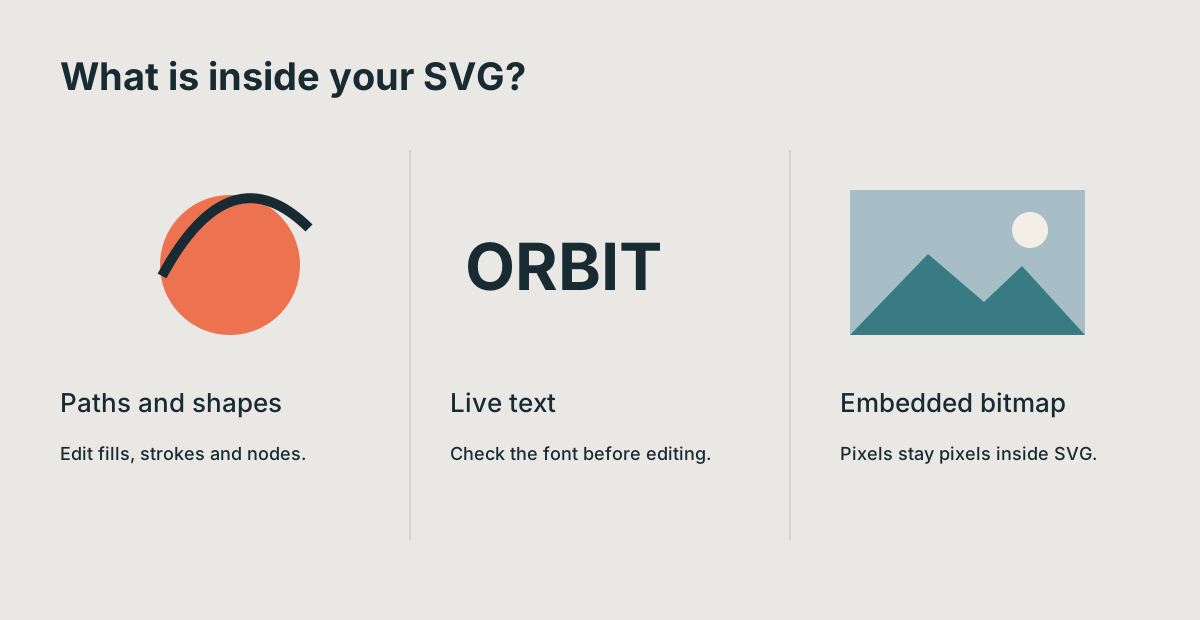
The contents of your SVG matter more than the label “vector editor.” Use the same file when comparing tools.
Take the original badge and one file from your real work. In each candidate, select one object, change one fill, inspect text, and export the format you actually need. Open that result in its destination.
Record where the files are processed, whether you need an account, what export costs, and whether important objects remain editable. If you did not complete a step, mark it untested. That gives you a comparison you can return to when the product changes.
For a quick local correction, try VectorCraft Online or SVG-Edit first. For assets inside a shared product-design workflow, evaluate Penpot or Figma. Choose the shortest workflow that delivers the file correctly, and keep the original until you have checked the export.