Ask your agent to install MCP and manage local canvases
Install through Codex or WorkBuddy, then create, open, edit, save, delete and restore local artwork. Files stay on your computer; the website edits and previews them.
VectorCraft Online local MCP gives your agent a folder of artwork files. The website opens, edits and previews them. Ask your agent to install once; you do not need to keep replacing an MCP URL.
How do I connect an AI client?
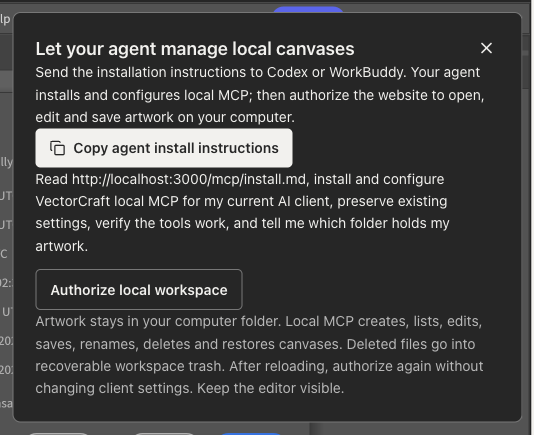
Open the editor, choose Connect AI → Copy agent install instructions, and send the complete text to Codex or WorkBuddy. The instructions point to this website's /mcp/install.md.
Your agent checks the runtime, downloads a checksum-verified bundle and merges its server into your current client's actual MCP settings. Other settings should remain intact. Your client may need to reload or restart; a configuration write alone does not prove the tools work.
There is no manual archive download, port entry or pairing code in this workflow. After installation, authorize the workspace as described below.
The English Connect AI panel in our local test build. Copy the instructions, let your agent install MCP, then authorize your workspace.
Who can control my canvas?
Local MCP runs on your computer, and this website needs your explicit workspace authorization to access its tools. Other visitors do not share your canvases. Only connect an AI client you trust to read and change the artwork in that folder.
Keep MCP running in your AI client, then choose Authorize local workspace. If the browser asks for loopback network access, you need to allow it. Do not disable browser security protections.
The panel displays the actual artwork folder. Installation defaults to ~/Documents/VectorCraft; a different folder can be chosen during setup. Disconnecting, reloading or closing the page ends browser access. Authorize again next time without changing your client configuration.
File tools are confined to the configured artwork folder and reject traversal and linked files. Your AI client may send object data, previews or exports to its model provider. Review those settings before connecting confidential artwork.
Create an independent canvas
Try asking:
Create a 640 × 480 canvas named Poster, open it in the website, add a rectangle in an empty area, and save the local file. Preserve my other open artwork.
| Operation | Tools |
|---|---|
| Create, list, read |
|
| Open in the browser | canvas_open |
| Edit and preview |
|
| Save on disk |
|
| Rename, delete, recover |
|
Files use the editable native .vectorcraft format. File creation does not need a browser. Open an artwork in an authorized visible browser for native drawing operations. Opening another file returns a fresh canvas identity, so older agent context cannot silently edit the new target.
Our local test created an independent file, opened it, added a shape, and verified that the saved disk file contained the new object.
Save, delete and recover
A visible edit is not saved until its file write completes. Ask your agent to call canvas_save, or choose Save to local file after manual editing. The native editor toolbar can still use the browser's download flow; that does not update the bound workspace file.
Saves check file revisions and refuse to overwrite unexpected changes from another program. An active artwork with unsaved edits cannot be deleted.
Deletion moves the file into .vectorcraft-trash inside the artwork folder. Ask your agent to list the trash and use canvas_restore to recover it. Restore never overwrites another file with the same name.
Are there AI or MCP relay charges?
This website does not charge for local MCP commands or file operations. Your AI client or model provider may charge for subscriptions or model usage; those charges are separate from the free editor and exports.
Canvas commands and artwork travel between local MCP and the browser on your computer, without our Cloudflare relay. Local mode has no cloud daily authorization allowance, background polling, infinite retries or automatic reconnect. Website delivery and initial installer downloads still use hosting resources.
Keep the artwork folder and its trash when uninstalling. For unattended rendering, compare the official CLI MCP workflow.